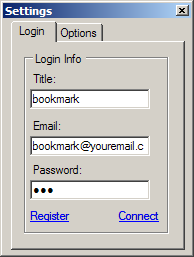
Install and run application. Specify the email address you want to register.
Press button 'Register'. You will see welcome message.
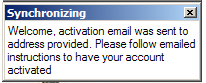
Open your email client and activate account by following the instruction, provided in email.
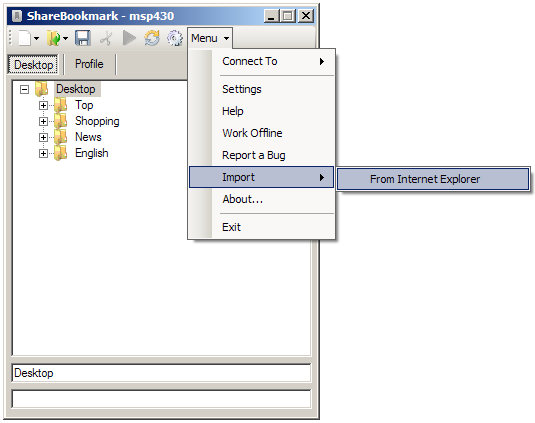
Open menu Import/From Internet Explorer
You will see the windows like shown below.
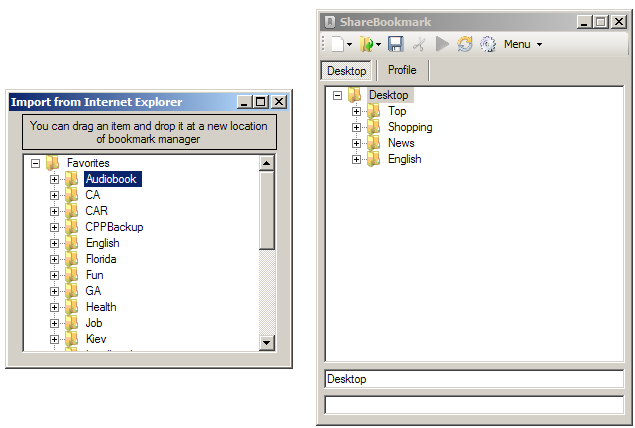
Pick a bookmark item from Import Window.
Drag and Drop Item in desired location of Bookmark Manager.
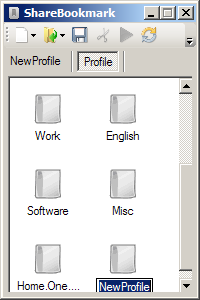
Select the tab Profile
Press menu item 'New Profile'
‘NewProfile’ folder will appear
Enter the profile name which you like
Press button Enter
Select the tab Profile
Select the profile you want to rename
Press and hold left mouse button
Enter the new profile name which you like
Press button Enter
Select the tab Profile
Select the profile you want to delete
Press Delete button or menu Cut of toolbar
Press toolbar button Open
Select bookmark item which you like to open
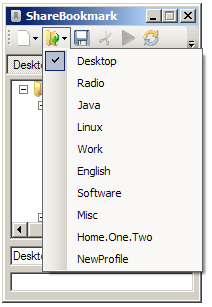
Select the folder where you wish to add new folder
Press toolbar button New Folder
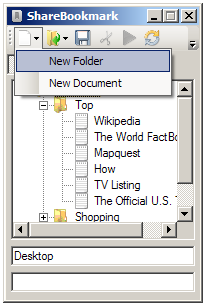
‘NewFolder’ folder will appear
Enter the folder name which you like
Run any browser and select desired web site
Select URL in address line of browser. In the location bar of your browser you will find a little icon that you can drag. The location and image of this icon varies from browser to browser and platform to platform:
Drag and drop URL text under the folder you wish
Sync: The process by which your Bookmarks are kept up to date across all of your computers.
In order to synchronize your bookmark press Sync toolbar button.